
Multi-factor authentication
Two-factor authentication (2FA) adds an extra layer of security to your account.
Once 2FA is enabled, logging into your account will require two forms of authentication:
- Your account password, and
- Security code generated by an authenticator app on your mobile phone.
Enable two-factor authentication
- Click your username (top right of screen) and select Account Settings.
- Click the Two-Factor Authentication tab.

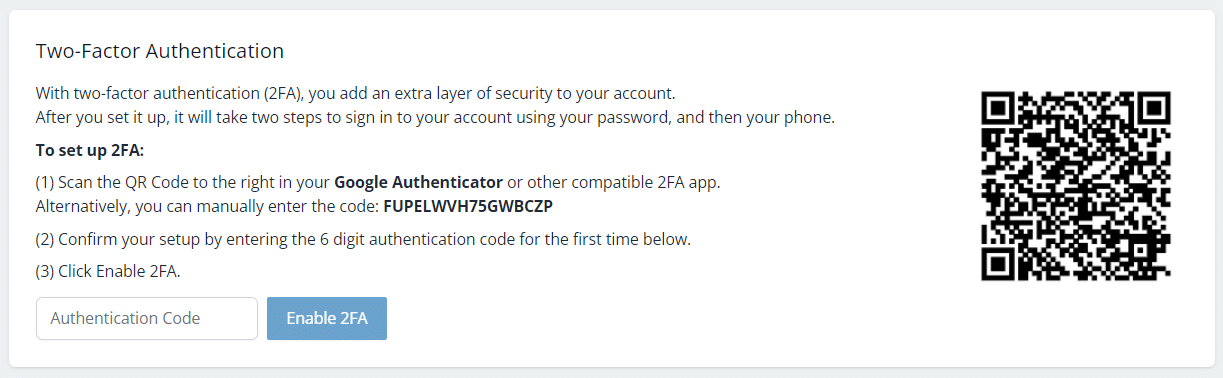
- Using an authenticator app on your mobile phone (e.g. Google Authenticator), scan the QR Code.
Alternatively, you can manually enter the code: FUPELWVH75GWBCZP - Enter the 6-digit authentication code generated by your authenticator app.
- Click Enable 2FA.
Note: If you’re unable to obtain an authentication code for your account, please contact Snapforms Support for assistance.
Disable two-factor authentication
- Click your username (top right of screen) and select Account Settings.
- Click the Two-Factor Authentication tab.
- Click Disable 2FA.
- Click Confirm if you are sure you want to disable 2FA on your account.